
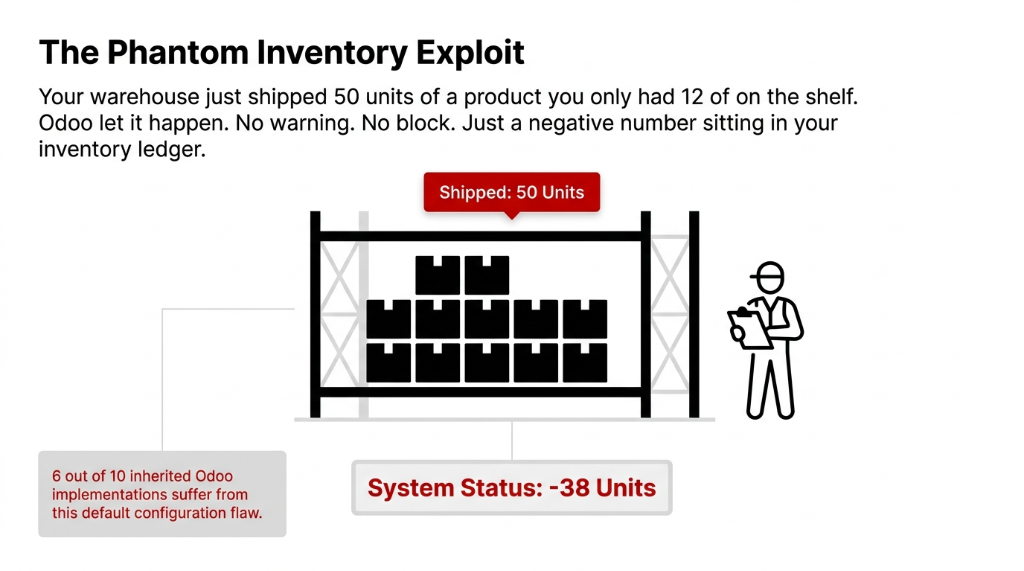
Why Odoo Does This (And Why It Is Actually Intentional)
Before you call it a bug, understand the design logic. Odoo's default behavior was built for operations that run in a receive-first, reconcile-later model. Think of a cross-docking scenario where goods are expected from a supplier, and your warehouse team needs to process outbound shipments before the inbound receipt is validated. In that context, a momentary negative stock makes operational sense.
The problem is that most brands scaling from $500K to $5M ARR are NOT running cross-docking operations. They are running standard pick-pack-ship fulfillment out of a single warehouse, and they have no business letting negative stock persist for days, weeks, or months.
UAE Fashion Brand: $14,620 Inventory Valuation Error
We inherited an Odoo environment from a fashion brand in the UAE where 23 SKUs had been running negative stock for 4 months. Their inventory valuation was off by exactly $14,620. Their accountant had flagged it three times. Nobody knew where it was coming from. The fix took us 4 hours. The cleanup before the fix took their team 19 hours.
The Real Damage Negative Stock Does to Your Books
Most founders think negative stock is just a warehouse problem. It is not. It is an accounting problem disguised as an inventory problem.
When a stockable product goes negative in Odoo under automated inventory valuation (AVCO or FIFO), the system cannot post a proper debit to your inventory valuation account. The journal entries either get stuck or post incorrectly.
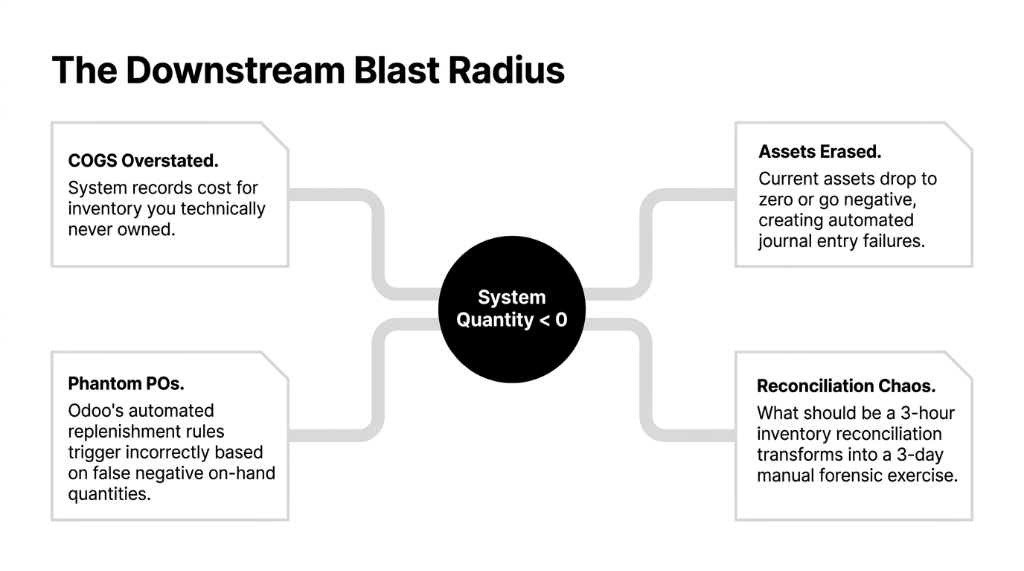
The Downstream Blast Radius of System Quantity Below Zero
COGS Overstated
System records cost for inventory you technically never owned — your P&L shows phantom expenses that do not correspond to real goods sold
Assets Erased
Current assets drop to zero or go negative, creating automated journal entry failures your CFO will not enjoy explaining to the bank
Phantom POs Generated
Odoo's automated replenishment rules trigger incorrectly based on false negative on-hand quantities — you order stock you already have
Reconciliation Chaos
What should be a 3-hour inventory reconciliation transforms into a 3-day manual forensic exercise every quarter-end
The impact compounds. A business doing $200K/month in revenue with 15 recurring negative-stock SKUs can easily accumulate $6,000-$18,000 in misposted inventory value per quarter.
If your inventory management system is silently allowing negative quantities, every financial report downstream is compromised.
The Fix: Odoo Negative Stock Prevention Configuration, Step by Step
This is the part most blog posts skip because they are written by people who have never actually clicked through an Odoo interface. Here is exactly what you do.
Step 1 — Install the OCA stock_no_negative Module
Odoo's core does not ship with a native negative stock blocker. You need the OCA (Odoo Community Association) module: stock_no_negative. Free, open-source, available from Odoo 9 through Odoo 18.
1. Go to Apps in your Odoo instance
2. Remove the "Apps" filter to see all modules (this is the step 73% of people miss)
3. Search for "Stock Disallow Negative"
4. Click Activate
Once installed, the system blocks any stock operation — delivery orders, internal transfers, manufacturing consumption, POS orders — that would push on-hand quantity below zero. Your warehouse team gets a hard error. No more silent negative drops.
Step 2 — Configure Global Behavior (The Default Block)
After installation, the default state is: no stockable product can go negative, anywhere, ever. This is the correct starting point for 90% of operations. You do not need to toggle anything globally — the module enforces it automatically on installation.
Test it immediately:
1. Create a test product (storable type), set on-hand to 5 units
2. Create a delivery order for 8 units
3. Validate it — Odoo will throw a blocking error: "You cannot validate a picking that will put the stock of [Product] below zero." If you see that error, your configuration is working.
Step 3 — Set Product-Level Exceptions
Not every product operates the same way. Some fast-moving items or internally-tracked components may need to go negative temporarily (during cycle counts, intercompany transfers, etc.).
Navigation: Inventory → Products → Products → [Select Product] → General Information tab → Allow Negative Stock (checkbox)
Enable this only for products where your operations team has explicitly signed off. Keep a documented list. We recommend reviewing this exception list every 90 days — left unreviewed, exception lists grow like weeds.
Step 4 — Set Product Category-Level Exceptions
If you have an entire category of semi-finished goods or raw materials that require negative stock tolerance, configure it at the category level instead of touching 40 individual products.
Navigation: Inventory → Configuration → Product Categories → [Select Category] → Allow Negative Stock
Critical behavior: Parent category settings cascade down to child categories automatically. Child category settings do NOT propagate upward. If you enable negative stock on "Raw Materials (Parent)", all subcategories under it inherit the exception.
Step 5 — Set Location-Level Exceptions
This is the most precise lever in the system and the one most implementers do not use correctly. If you have a transit location or an intercompany location where negative quantities are expected during multi-step routing:
1. Inventory → Configuration → Settings → Enable Storage Locations
2. Inventory → Configuration → Locations → [Select Location] → Allow Negative Stock
This is particularly useful for inter-warehouse transfers and cross-docking lanes. The transit location can go negative during the transfer window, while all other locations remain hard-blocked.
Getting these five steps configured correctly — especially the exception hierarchy — is a core part of our Odoo implementation services for D2C and manufacturing brands. Half the value is in the configuration; the other half is in knowing which exceptions to not grant.
What Happens on Odoo SaaS (Online) — And Why It Is Different
If you are on Odoo Online (SaaS), you cannot install custom OCA modules. The stock_no_negative module is unavailable to you through normal channels.
The SaaS Workaround: Odoo Studio Automated Actions
You can write a Python-based server action that fires on Sales Order confirmation and checks product.qty_available against line.product_uom_qty. If stock is insufficient, it raises a UserError blocking the confirmation.
This is not as airtight as the OCA module — it only blocks at the Sales Order stage, not at the picking validation or manufacturing stage — but it is better than doing nothing, which is what 80% of SaaS clients we audit are currently doing.
The Configuration Priority Hierarchy Odoo Uses
When multiple "Allow Negative Stock" exceptions conflict, Odoo resolves them in this order:
| Priority | Level | Where Configured |
|---|---|---|
| 1 (Highest) | Location | Inventory → Configuration → Locations |
| 2 | Product Category | Inventory → Configuration → Product Categories |
| 3 | Product | Inventory → Products → General Information |
| 4 (Default) | Global Block | Installed via stock_no_negative module |
If a location allows negative stock, that overrides product and category settings. Keep your location exception list tighter than your product exception list.
The Operations Reality After You Enable This
Your warehouse team will resist this. Expect it. On day one, they will hit blocking errors on deliveries they "know" should go through — because their mental model of on-hand stock does not match what is actually in Odoo.
That friction is the point.
Every Blocking Error Is a Signal
1. A receipt has not been validated yet (supplier delivered, but the inbound picking is still in "Ready" state)
2. An inventory adjustment was skipped after a cycle count
3. Someone processed a manual consumption without creating a proper stock move
7.3 Unvalidated Receipts Per Warehouse — Found in Week 1
In our last 12 Odoo implementations where we enabled negative stock prevention on Day 1 of go-live, clients found an average of 7.3 unvalidated receipts per warehouse within the first week. Those receipts represented an average of $11,400 in inventory that "existed physically but not digitally." Fixing those was not a problem the negative stock block created — it was a problem the block revealed.
The Odoo ERP integration work we do during onboarding includes configuring negative stock prevention as a non-negotiable Day 1 setting — because every day you wait is another day of corrupted inventory data compounding silently.
Frequently Asked Questions
Does Odoo block negative stock natively without any module?
No. Out of the box, Odoo 16, 17, and 18 allow stock to go negative during delivery validations, internal transfers, and manufacturing orders. You must install the OCA stock_no_negative module to enforce a hard block. There is no native toggle in Odoo's core settings for this.
Can I allow negative stock for some products but not others?
Yes. After installing the stock_no_negative module, you can enable the "Allow Negative Stock" checkbox at the product level, product category level, or stock location level. Parent category settings cascade down to child categories automatically, so configure at the highest applicable level to avoid redundant product-by-product work.
Does negative stock prevention work for manufacturing orders and POS?
Yes. The stock_no_negative module blocks negative stock across delivery orders, internal transfers, manufacturing consumption, and POS order validations. If a manufacturing order would consume more than the on-hand quantity, the system throws a blocking error before the order can be confirmed or validated.
What if I am on Odoo SaaS (Online) and cannot install OCA modules?
Use Odoo Studio's Automated Actions to write a server-side Python action on Sales Order confirmation that checks product.qty_available against the ordered quantity and raises a UserError if stock is insufficient. This will not block at the picking or manufacturing stage, but it prevents orders from being confirmed when stock is zero.
Will enabling this break my existing negative stock entries?
No. Installing the module does not retroactively fix existing negative quantities — it only prevents new ones from being created going forward. You will need to manually run inventory adjustments or validate pending receipts to clear any existing negative balances before the system will allow related deliveries to process.
The Insider Takeaway
- Install stock_no_negative on Day 1. Not Day 30. Every day you wait is another day of silently corrupted inventory data
- Configure exceptions at the Location level (transit locations, cross-docking lanes) — not at the Product level. Location-level is surgical. Product-level is a spreadsheet waiting to grow
- Review your exception list every 90 days. Left unreviewed, exceptions multiply and your block becomes swiss cheese
- The blocking errors your warehouse team hates are revealing receipts that were never validated — that is $11,400 in hidden inventory per warehouse on average
Do Not Let Convenience Cost You $14,000
The default Odoo setting that allows negative stock exists for edge-case operational flexibility. For brands doing real physical inventory operations, it is a liability, not a feature.
Book our free 15-Minute Operations Audit. We will find your biggest inventory leak in the first call. No slides. No pitch deck. Just your numbers and the exact dollar impact of your negative stock exposure.
Book Your Free Inventory Audit