
We have audited 47 international D2C brands in the last 18 months. The average hidden loss from unreconciled foreign currency transactions sits at $14,200 per month.
That money does not disappear in one dramatic event. It bleeds out slowly — through wrong invoice amounts, missed exchange gain/loss entries, and month-end closes that take 37 hours instead of 4.
If your finance team is still copying exchange rates from Google into a spreadsheet — you are not running a global brand. You are running a ticking time bomb.
The Stack That Is Breaking Your Finances
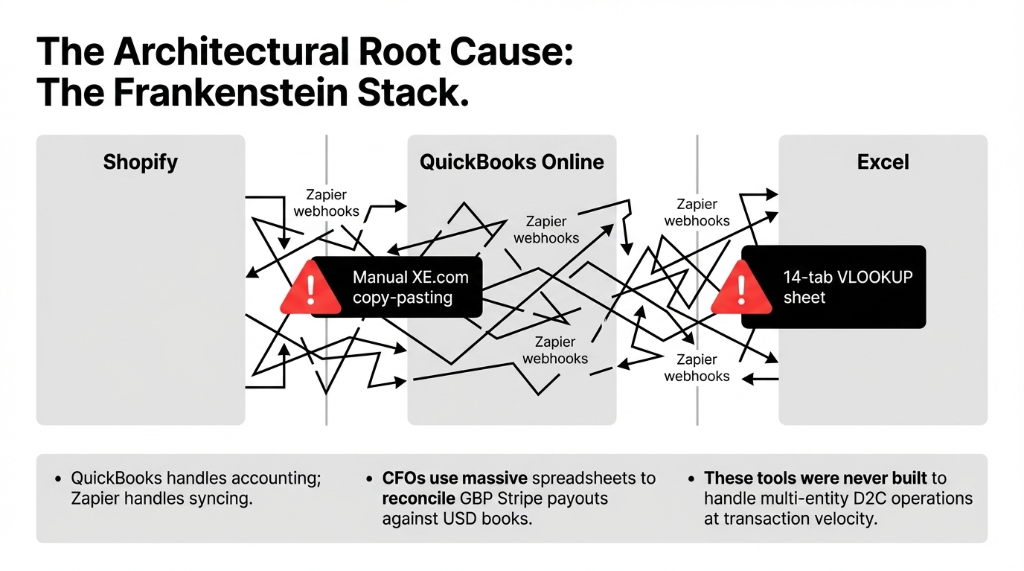
Here is what we constantly see: a $3M-a-year D2C brand selling on Shopify across the US, UK, and UAE. They are using QuickBooks Online for accounting, copy-pasting exchange rates from XE.com into manual journal entries, and their CFO is running a separate Excel sheet with VLOOKUPs to reconcile the GBP payout from Stripe against the USD books.
That Excel file has 14 tabs. One of them has not been updated since November.
The €2,400 Berlin Order That Nobody Tracked
A customer in Berlin placed a €2,400 order on January 3rd when EUR/USD was 1.09. The payment cleared on January 19th when the rate had moved to 1.06. Nobody recorded that $72 exchange loss.
Multiply that by 190 orders a month from the EU alone.
You have just lost $13,680 that never shows up on any report, anywhere.
This is not a cash flow problem. It is a visibility problem. And QuickBooks, Xero, and spreadsheets will never solve it, because they were not built to handle multi-entity, multi-currency D2C operations at transaction velocity.
Why "Just Upgrade Your Accounting Software" Is Wrong
Every consultant you have talked to has told you to bolt on a multi-currency plugin to Xero or "get a proper bookkeeper." That advice costs you $2,400/month in bookkeeper salary plus $380/month in software, and you still cannot pull a real-time consolidated P&L in three currencies without a 48-hour delay.
Here is the reality: the problem is not your accountant. The problem is that your transaction data, your inventory data, and your accounting data live in three different systems that talk to each other through Zapier webhooks — and the moment Shopify's API rate-limits during a flash sale, 300 orders do not sync, and your currency exposure disappears into a gap that no one finds until the quarterly audit.
Frankly: Adding another SaaS tool to a broken stack is like putting a second padlock on a door with no wall. The architectural root cause is that your data lives in 3 separate systems. Odoo puts it in one.
How Odoo Multi-Currency Setup Actually Works
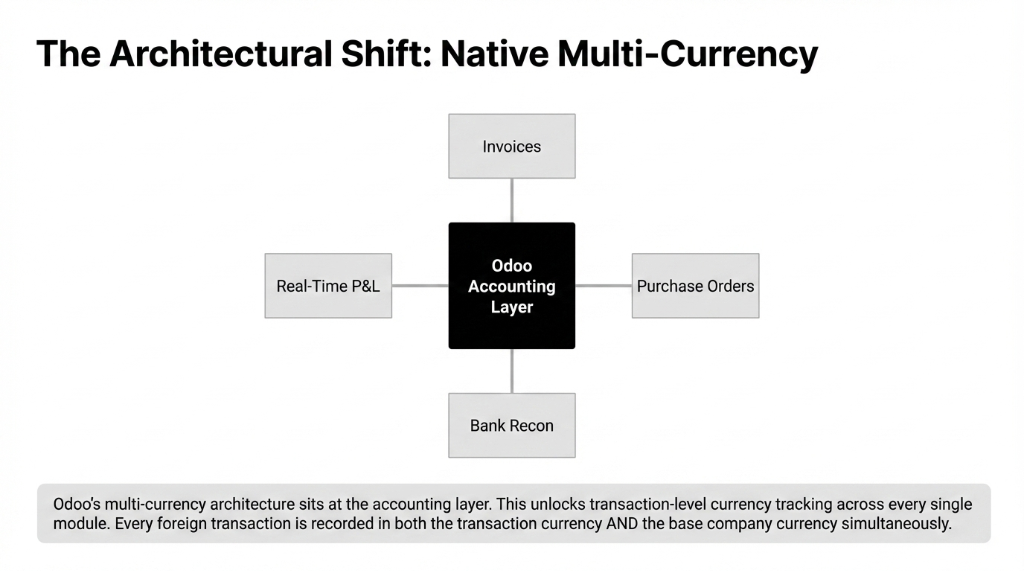
Odoo's multi-currency architecture sits at the accounting layer, not the reporting layer. That is the key difference. Every foreign transaction is recorded in both the transaction currency AND the base company currency simultaneously.
The 6-Step Multi-Currency Configuration
Step 1: Enable Multi-Currency
Accounting → Configuration → Settings → Currencies → Multi-Currencies. Toggle on. This one action opens up transaction-level currency tracking across every module — invoices, purchase orders, bank reconciliation, and P&L.
Step 2: Set Base (Company) Currency
USD for US-headquartered brands. GBP for UK. AED for UAE. All reports consolidate back to this currency. Every foreign transaction gets dual-recorded automatically.
Step 3: Activate Target Currencies
Toggle EUR, GBP, AED, CAD, AUD — whichever markets you sell into. We typically activate 4-6 currencies for a standard international D2C brand. Each gets its own rate history.
Step 4: Automatic Exchange Rate Updates
This is where most DIY setups break. Odoo pulls live rates from the European Central Bank on a daily schedule — automatically. EUR invoice from Tuesday uses Tuesday's rate. No manual entry. No $72 losses.
Step 5: Configure Gain/Loss Accounts
Assign a dedicated Journal, Gain Account, and Loss Account for exchange differences. When EUR/USD moves between invoice date and payment date, Odoo posts the difference automatically. GAAP/IFRS compliant without your finance team doing anything.
Step 6: Assign Currencies to Partners
Set a default currency per customer or per sales channel. EU Shopify store defaults to EUR. UK store defaults to GBP. Every document inherits the right currency automatically.
The Exchange Rate Trap That Kills Your Margins
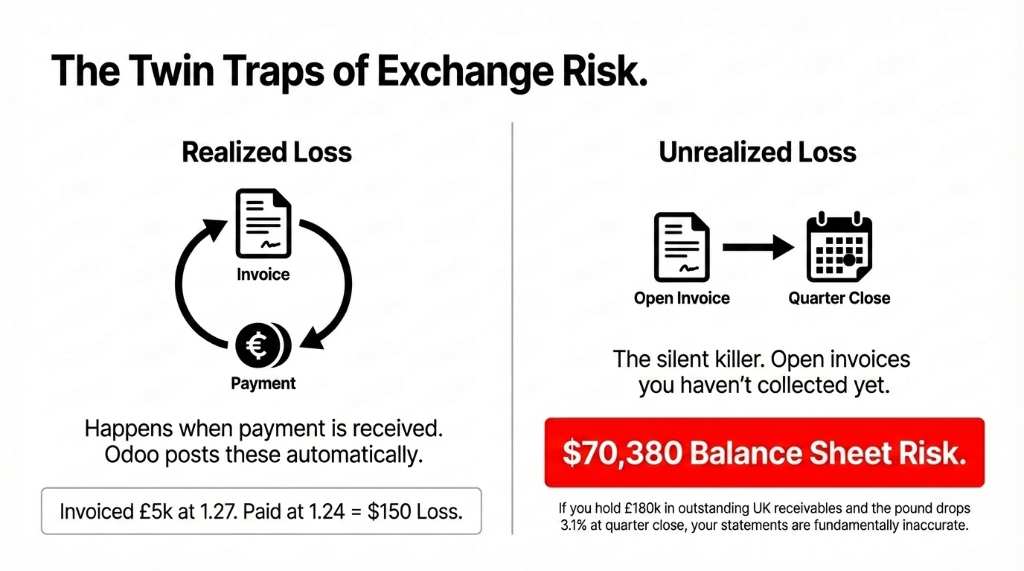
Here is something 9 out of 10 D2C founders do not know: there are two types of exchange losses in Odoo, and if you only handle one, your financial statements are still wrong.
Realized Gains/Losses
These happen when payment is received. If you invoiced a UK customer £5,000 on March 1st at GBP/USD 1.27, and they paid on March 22nd at GBP/USD 1.24 — that is a $150 realized loss on one invoice. Odoo posts this automatically to your Loss Account.
Unrealized Gains/Losses — The Silent Killer
These are the open invoices you have not collected yet. If you have £180,000 in outstanding UK receivables and the pound drops 3.1% during your quarter close, that is a $70,380 unrealized loss that must be reported on your balance sheet.
Odoo 17/18's Unrealized Currency Gain/Loss Report runs this calculation automatically at period close — applying today's rate to every open foreign-currency balance and generating the adjustment entries for you.
Real discovery: In our last 12 implementations across the UAE and UK, brands that ran the Unrealized Currency Gain/Loss Report for the first time discovered an average of $9,340 in previously invisible currency exposure sitting on their books. (Yes, their auditors were not happy.)
What Your Numbers Should Look Like After Setup
Verified Results Within 90 Days of Proper Setup
Month-End Close
From 37 hours → 6 hours
Exchange gain/loss entries automated, no manual journal entries
Currency Reconciliation Errors
Fall by 91% — from 23 errors/month to 2
No more guessing which rate was used on which invoice
Recovered Exchange Differences
Average of $11,800/month in previously unrecorded gains/losses
Money that was bleeding out silently for months
Consolidated Multi-Currency P&L
Available in real time — not 48 hours after someone finishes an Excel pivot
USD, GBP, EUR in one report, live
The $34,600 Discovery
One of our clients — a $4.2M skincare brand selling across the US, UK, and UAE — discovered $34,600 in unrecorded exchange losses in their first post-implementation audit. That number had been accumulating for 11 months.
Their accountant had flagged "reconciliation issues" every quarter. Nobody knew why.
It took us 6 days to implement Odoo multi-currency. The problem has not come back.
The Implementation Reality
Setting up Odoo multi-currency for an international D2C brand is not a weekend project, but it is not a six-month enterprise rollout either. Here is the honest timeline:
| Phase | What Happens | The Hard Truth |
|---|---|---|
| Days 1-2 | Base currency config, activating foreign currencies, connecting exchange rate provider | The easy part. Do not celebrate yet. |
| Days 3-5 | Mapping Shopify/Stripe/PayPal payouts to the correct currency journals in Odoo | This is where payment gateway currency mismatches surface. |
| Days 6-8 | Configuring gain/loss accounts, testing invoice-to-payment cycle in EUR, GBP, AED | Test with real historical transactions, not dummy data. |
| Days 9-12 | Running first unrealized gain/loss report, validating opening balances | Expect to find $9,000+ in invisible exposure. Budget the shock. |
| Day 14 | Finance team training — 3 hours, not 3 days | Your CFO will ask why you did not do this a year ago. |
The Real Migration Bottleneck
The hardest part is not Odoo. It is cleaning up 18 months of manual QuickBooks journal entries before you migrate. We have seen that cleanup take anywhere from 3 days to 3 weeks, depending on how badly the data is structured.
Budget for it. Plan for it. Do not let anyone tell you migration is "just an import."
Everyone says keep QuickBooks and "just add a multi-currency plugin." Do not. Those plugins do not handle unrealized gains, do not auto-fetch rates, and do not give you a consolidated P&L across 3 currencies in real time. Odoo does all three natively — and your finance team is live in 14 days, not 6 months.
We have implemented this for 150+ brands across the US, UK, UAE, and Singapore — and we have seen this exact problem cost founders between $9,000 and $34,000 before they fixed it. Your Shopify stores are already generating the data. Let Odoo actually account for it.
Frequently Asked Questions
Can Odoo handle multi-currency if we are already live on Shopify in multiple countries?
Yes — and it is the most common setup we implement. Odoo connects to your Shopify stores via native or custom integration, pulls orders in their transaction currency (USD, GBP, EUR), and records each one against your base currency using the rate on the order date. No manual mapping needed after initial config. Setup typically takes 4-6 days for a 2-3 country operation.
What happens when a customer pays in a different currency than what we invoiced?
Odoo handles cross-currency payments natively. When you register the payment, you select the received currency, input the amount, and Odoo automatically calculates the exchange difference and posts it to your configured gain/loss account. The invoice closes correctly without any manual journal entry from your team.
Do we need separate Odoo companies for each country we sell in?
Not necessarily. If it is the same legal entity selling internationally, one Odoo company with multi-currency enabled is enough. You only need multi-company setup when you have legally distinct entities with separate tax registrations — for example, a US holding company and a UK subsidiary filing separate VAT returns.
How does Odoo update exchange rates, and how accurate are they?
Odoo can auto-fetch rates from the European Central Bank (free), Open Exchange Rates, or other providers on a daily or weekly schedule. ECB rates are accurate for EUR/USD and most major pairs. For exotic pairs like AED/INR or SGD/AUD, we recommend connecting a paid provider like Open Exchange Rates ($12/month) to avoid stale data on low-volume currency pairs.
Will our existing QuickBooks data transfer to Odoo without losing currency history?
Opening balances can be migrated with their original transaction currencies intact, but the historical exchange rate at each transaction date must be included in the migration file. If your QuickBooks data only stored USD equivalents (not the original foreign currency amounts), you will lose the source-currency detail. We always recommend a clean cutover date rather than trying to reconstruct 3 years of multi-currency history.
Pull Your AR Aging Report Right Now. Check the Currency Column.
If every open invoice is showing in USD but your customers paid in GBP and EUR, your balance sheet is fundamentally wrong. Book our free 15-Minute Operations Audit — we will identify your exact currency exposure in the first call, at zero cost.
Do not let unrecorded exchange losses eat your international margins.