
The Mistake Costing You $11,400/Month
Most Odoo users set up reordering rules by entering a Min Quantity and Max Quantity, and they stop right there. They do not touch the vendor-level MOQ field. They do not configure Purchase Lead Time. They do not set a Security Lead Time buffer.
Then they wonder why Odoo generates purchase orders for 3 units when the supplier only ships in batches of 50 — triggering a back-and-forth email chain that wastes 4.5 hours per PO cycle.
The Configuration Gap: By The Numbers
73 out of 150
Odoo implementations where brands past $2M ARR still had reorder logic configured the same way a $200K startup would
$11,400/mo
Express freight charges for one UAE brand — because vendor lead time was set to 6 days instead of the actual 19
37 min/SKU
Time spent manually fixing POs when vendor MOQ field defaults to 0 and Odoo generates orders for 1 unit
We've seen this exact pattern in 73 out of our last 150 Odoo implementations — brands scaling past $2M ARR still running reorder logic configured the same way a $200K startup would. The fix is not buying more inventory software. The fix is in Odoo's MOQ and Lead Time fields.
MOQ on the Vendor Pricelist: The Field Nobody Configures
When most people say "MOQ in Odoo," they mean one of two very different things. Confusing them breaks your procurement logic.
MOQ Type 1: Vendor Pricelist Minimum Quantity
This is the supplier-facing constraint. Go to Inventory → Products → Products, open your product, click the Purchase tab, and look at your vendor lines. There is a Minimum Quantity column right there. This field tells Odoo: "When this vendor fulfills an order, the minimum line quantity on any PO must be at least X units."
If your reordering rule triggers a need for 8 units but your vendor MOQ is 50, Odoo respects the vendor MOQ and bumps the PO to 50. The catch? If you do not fill this field, it defaults to 0. Odoo will happily generate a PO for 1 unit. Your supplier will reject it. Your procurement team will spend 37 minutes fixing it manually. Per. SKU.
MOQ Type 2: eCommerce/Sales Order Minimum Quantity
This is the customer-facing constraint. If you are running Odoo eCommerce or B2B sales, you can define a Minimum Order Quantity at the product level — customers physically cannot add fewer units than that threshold to their cart. For product variants (size S vs. size L), you set the MOQ individually on each variant form via the Variants smart button.
The Multiple Quantity Field (The Bonus Setting Most People Ignore)
Where: Inside your reordering rules, there is a Multiple Quantity field.
What it does: Set this to 24 (for a case of 24 units), and Odoo will always round purchase quantities up to the nearest multiple of 24. This eliminates broken-case ordering entirely.
Real result:
We have seen brands cut packaging waste costs by $1,700/month just by activating this one field. It takes 3 minutes to configure per product.
If your inventory management system is generating POs that your suppliers immediately reject, the problem is almost certainly a missing MOQ or Multiple Quantity value — not a software bug.
Lead Time Configuration: Three Separate Levers That Stack
This is where 89% of Odoo users make a mess. "Lead time" in Odoo is not one setting. It is three separate levers, and they stack on top of each other. Get one wrong, and your "Expected Arrival" dates on POs are fiction.
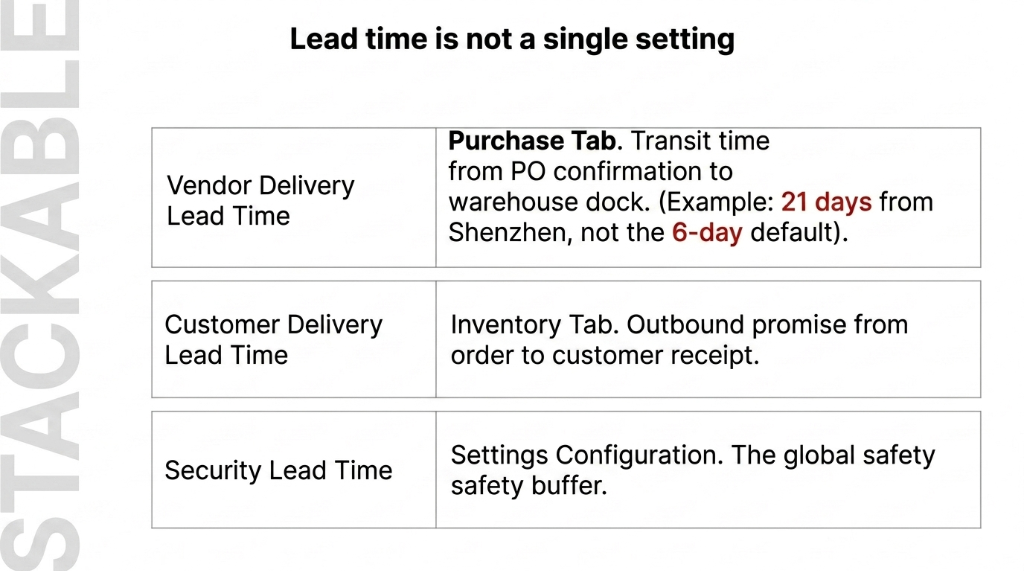
Lever 1: Vendor Delivery Lead Time
Go to Product → Purchase tab → Vendor line → Delivery Lead Time column. This is the number of days from when you confirm a PO to when goods arrive at your warehouse dock. The Odoo factory default is 6 days. Go check your actual supplier contracts right now. We will wait.
For a client in Singapore sourcing from Shenzhen, the real lead time was 21 days. Their Odoo had it set to 6. Every single "Expected Arrival" date was 15 days optimistic. Their planning team was essentially flying blind.
Set this per-vendor, per-product. A single vendor can supply Product A in 7 days and Product B in 14 days (because B requires custom labeling). Odoo supports this natively — each vendor line on the Purchase tab is independent.
Lever 2: Customer Delivery Lead Time
Your outbound promise. Configure it under Product → Inventory tab → Customer Lead Time. If you sell a product with a 3-day customer lead time and a 19-day vendor lead time, Odoo's procurement scheduler knows it needs to trigger replenishment at least 22 days before the delivery deadline.
Setting customer lead time to 0 because "we ship same day"?
Make sure that is actually true for every product, every warehouse zone. One apparel brand we worked with had 0-day customer lead time on a product that was actually picked, packed, and shipped on day 3. Their customer SLA breach rate was 34% — traced directly back to this single misconfigured field.
Lever 3: Security Lead Time — The Buffer Nobody Uses Until They Get Burned
Go to Inventory → Configuration → Settings, search "Lead Time," and enable Security Lead Time for Purchase and Security Lead Time for Sales. This adds a fixed buffer (e.g., 2 days) to every replenishment calculation as a safety margin for supplier delays, customs holds, or port congestion.
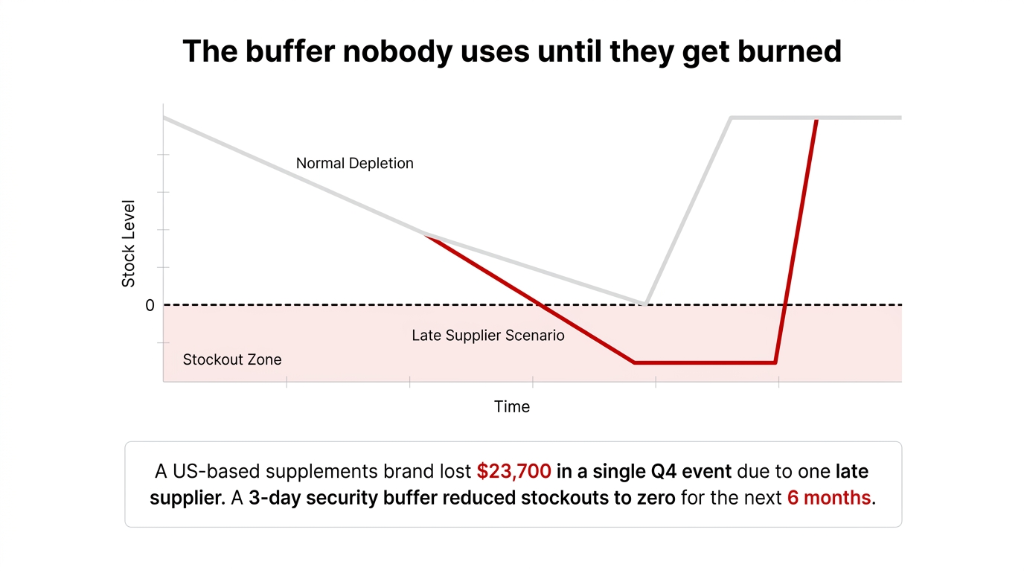
If your on-time delivery rate is below 91% — which it is for most brands sourcing internationally — a 2-to-3-day security buffer prevents stockouts without requiring you to manually babysit every PO. We had a US-based supplements brand lose $23,700 in a single Q4 stockout event because they had no security lead time configured and one supplier was 4 days late. They activated a 3-day security lead time afterward. Zero stockout events in the 6 months that followed.
How Reordering Rules, MOQ, and Lead Times Work Together
Here is what the full logic chain looks like when everything is configured correctly — and this is exactly the story your Odoo scheduler tells every time you hit "Run Scheduler."
| Setting | Value | What It Controls |
|---|---|---|
| Reordering Rule Min Qty | 50 units | When to trigger replenishment |
| Reordering Rule Max Qty | 300 units | Target stock level after replenishment |
| Vendor MOQ | 100 units | Minimum PO line quantity supplier accepts |
| Multiple Quantity | 100 units | Rounds order up to nearest clean multiple |
| Vendor Lead Time | 14 days | Transit time from PO confirmation to dock |
| Security Lead Time | 2 days | Buffer for delays, customs, port congestion |
When forecasted stock drops below 50, Odoo triggers replenishment. The system calculates the order quantity needed to reach Max (300 minus current stock). If that number is below the vendor MOQ of 100, Odoo bumps it to 100. Multiple Quantity ensures the quantity is always a clean multiple of 100. Expected Arrival = today + 14 days (vendor lead time) + 2 days (security buffer) = today + 16 days.
Your procurement team does not have to calculate anything. They confirm the PO. Done. This is a 14-minute configuration session inside Odoo that replaces a 3-hours-per-week manual replenishment spreadsheet. *(Yes, we know that spreadsheet is still running on someone's laptop in your operations team.)*
The Replenishment Report: Your Daily Cockpit
Once MOQ and lead times are configured, Inventory → Operations → Replenishment becomes your single operations dashboard. Every product with a triggered reordering rule, the suggested order quantity (already MOQ-adjusted), the expected arrival date (already lead-time-calculated), and the vendor. You click "Order Once" or let the scheduler automate it.
The Horizon Days Setting That Changes Everything
Set Horizon Days to 30, and Odoo shows you every product forecast to breach its Min Quantity within the next 30 days — not just products that have already breached it. This is the difference between reactive procurement and proactive procurement. Most of our clients with a 30-day horizon see a 28% drop in urgent/expedited POs within the first 90 days of activating it.
This is the same replenishment engine we configure across all our Odoo ERP integration services — connect the scheduler to your vendor data, and the system stops guessing.
What Goes Wrong When You Skip This — Real Numbers
We constantly see clients making these three specific mistakes — and they are all avoidable:
Three Mistakes That Cost Real Money
- Wrong vendor lead time: A UK fashion brand had lead time set to 7 days for a Bangladesh supplier. Actual lead time: 28 days. Result: $18,300 in air freight upgrades over 6 months to compensate for chronically late POs.
- No vendor MOQ set: An Indian FMCG brand's Odoo was generating POs for 6 units per SKU. Supplier minimum was 144 units (a full carton). Procurement team was manually editing 12 to 17 POs per week. At 20 minutes per edit, that is 5.7 hours/week of pure waste.
- MOQ and Multiple Quantity fighting each other: One client set MOQ to 50 and Multiple Quantity to 30. Odoo tried to order 60 (first multiple above 50), but the vendor rejected anything not in multiples of 50. Constant PO rejection loops. The fix: align Multiple Quantity to match or divide evenly into vendor MOQ.
The Implementation Reality
Configuring MOQ and lead times in Odoo is not a weekend project. It is a 3-to-5 day data exercise — pulling supplier contracts, confirming actual delivery performance from your last 6 months of PO history, and entering accurate figures SKU by SKU. For a brand with 200+ active SKUs across 15+ vendors, expect 18 to 22 hours of clean-up work.
What Gets Easier the Moment You Finish
Your procurement team stops babysitting POs. Your "expected arrival" dates on sales orders become trustworthy. Your finance team stops getting surprised by $30,000+ emergency freight invoices. We have seen brands cut their purchasing admin time from 14 hours/week to 3 hours/week within 30 days of completing this configuration.
This is exactly the kind of operational cleanup we handle during our Odoo implementation services — fix the data first, configure the rules second, and let the system enforce the discipline that humans won't maintain at scale.
Your MOQ and Lead Time Questions, Answered
Where do I set Minimum Order Quantity for a vendor in Odoo?
Go to Inventory → Products → Products, open the product, click the Purchase tab, and find your vendor in the vendor pricelist lines. The Minimum Quantity column on that line is your vendor's MOQ. Odoo will never generate a PO to that vendor below this quantity, regardless of what your reordering rule calculates.
What is the difference between vendor lead time and security lead time?
Vendor lead time is the actual transit time your supplier needs to deliver — configured per vendor per product in the Purchase tab. Security lead time is a global buffer added on top to absorb delays — configured in Inventory → Configuration → Settings. They stack together to calculate the Expected Arrival date on every PO.
Can I set different MOQs for different product variants?
Yes. Open the product, click the Variants smart button, select the specific variant, and set the Minimum Order Quantity on that variant's form. Each variant can carry an independent MOQ.
What does the Multiple Quantity field in reordering rules do?
It forces Odoo to round all replenishment order quantities up to the nearest specified multiple. Set it to 48 for pallets of 48, and Odoo will never generate a PO for 52 — it rounds up to 96. This eliminates broken-pallet orders and the supplier rejections that follow.
How does Odoo calculate the Expected Arrival date on a purchase order?
Odoo adds the Vendor Delivery Lead Time (Product → Purchase tab) plus the Security Lead Time for Purchase (Inventory Settings) to the PO confirmation date. If either value is wrong or missing, every scheduled date in your procurement pipeline is wrong — and your downstream sales delivery commitments are built on fiction.
Stop Bleeding Cash on Emergency Freight and Stockout Penalties
Book our free 15-Minute Operations Audit. We'll identify your biggest replenishment leak in the first call — the wrong lead time, the missing MOQ, the reordering rule that's been running on defaults since day one. No fluff. No sales pitch. Just a real number.
Get Your Free Replenishment Audit