
The Ugly Reality of Vendor Stock Today
Look at your current "VMI." The vendor keeps some pallets "for you" in their warehouse and sends whatever they feel like when you shout on Slack. Your team keys receipts into Odoo from PDFs, and half the time the SKU is mistyped — so 14,200 units sit under the wrong product. Finance has no idea who owns what.
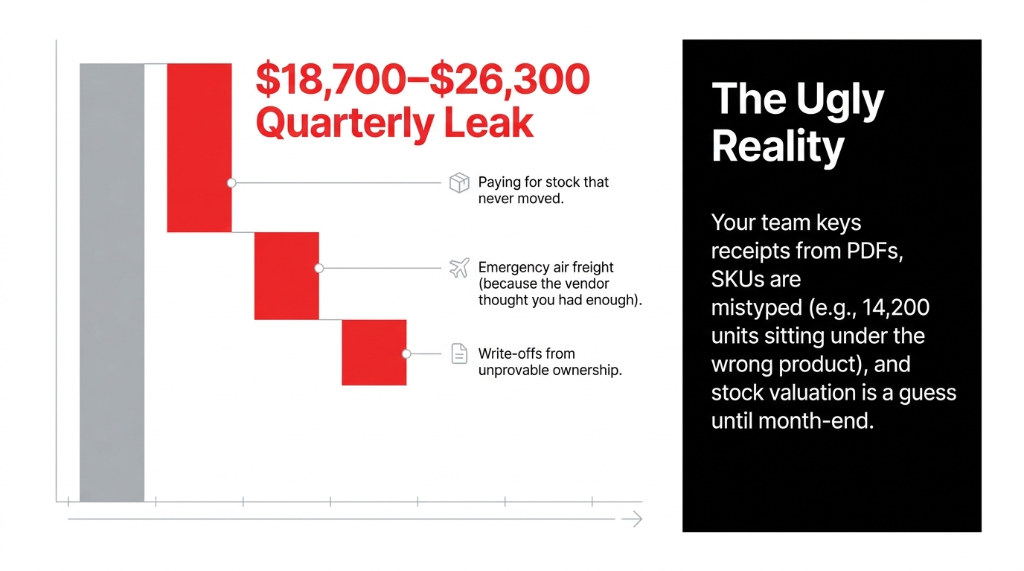
When we audit operations, we routinely see brands leaking $18,700–$26,300 a quarter from three sources: paying for stock that never moved, emergency air freight because "the vendor thought you had enough," and write-offs because nobody can prove ownership.
You don't fix this by buying NetSuite or hiring another planner. You fix it by using Odoo's existing inventory controls properly and making vendors play by your rules.
The VMI Leak: By The Numbers
$18,700–$26,300
Quarterly cash leak from unmanaged vendor stock — paying for ghost inventory, emergency freight, and unprovable write-offs
14,200 units
Miskeyed under the wrong product in one audit — because someone typed a receipt from a vendor PDF instead of scanning a barcode
240–360 hrs
Planning hours freed per quarter when VMI is done right — time your team currently wastes chasing vendors on WhatsApp
How Odoo Actually Handles Vendor-Managed Inventory
Odoo doesn't ship a big red button called "VMI." Instead, you combine three core capabilities that already exist in standard Odoo — no magic module required.
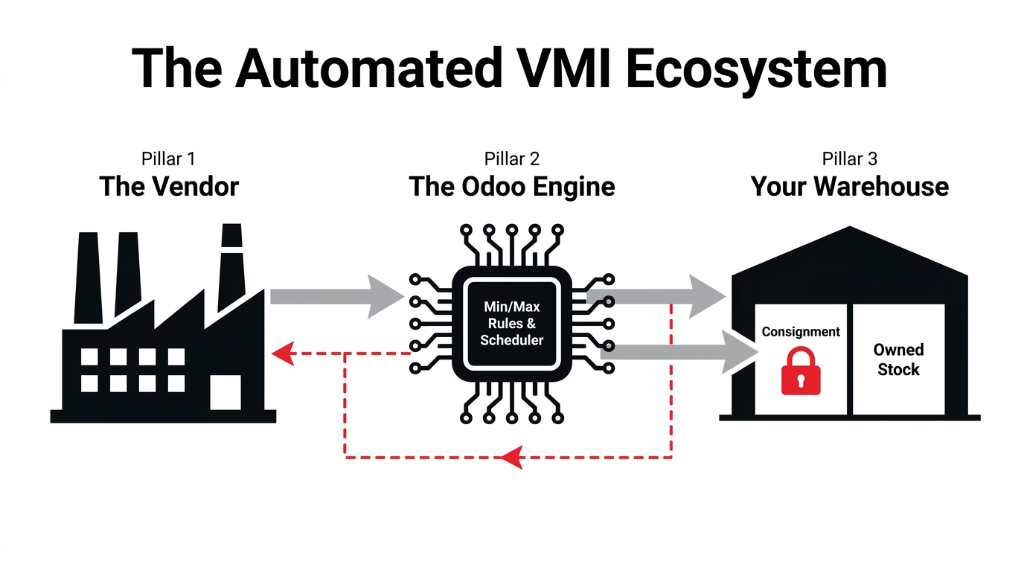
The Three Pillars of Odoo VMI
Pillar 1 — Consignment / Owned Stock: Track stock that physically sits in your warehouse but is legally owned by a vendor. The Consignment feature lets you assign an "owner" on receipts and internal moves so the system always knows whether stock belongs to you or to Vendor X.
Pillar 2 — Reordering Rules / Replenishment: Set minimum/maximum levels and let Odoo create RFQs or POs automatically when forecasted stock drops below your floor. This is where the "managed" in vendor-managed actually kicks in.
Pillar 3 — Locations and Owners: Assign ownership on receipts and moves. Use virtual or physical locations to represent where vendor-owned stock sits — in your warehouse or at the vendor's site.
The real VMI formula:
Let the vendor keep ownership until you consume. Use reordering rules as the signal to replenish. Use locations to track where vendor-owned stock sits. Add-ons can help with vendor portals, but the backbone lives in standard Odoo.
Ground Rules Before You Touch a Single Setting
Before you click anything in Odoo, fix the business rules. We always force three decisions upfront. Skip these and jump into configuration? You'll end up with a Frankenstein setup that your warehouse hates and your vendors ignore.
Decision 1: Who Owns What, When?
Vendor owns units until you consume or invoice them. After that point, stock must be tagged as your company's — not "floating" consignment that nobody accounts for.
If ownership is ambiguous, your balance sheet is fiction.
Decision 2: What Is the Replenishment Trigger?
Min/max on-hand in Odoo. Or min/max across you plus the vendor if you are tracking vendor warehouse stock virtually. Pick one model. Document it. Enforce it.
Don't let the answer be "whoever panics first calls the vendor."
Decision 3: What Is the Vendor's Visibility?
Spreadsheet export from Odoo on a fixed schedule? Vendor portal (custom or app-store module)? Hybrid — high-volume vendors get portal access, smaller vendors get emailed CSV once a week?
If you think "we'll just share an Odoo login" — you're asking for a security and audit disaster.
The 6-Step Odoo VMI Setup That Actually Works
Step 1: Enable Consignment and Clean Your Locations
Go to Inventory → Configuration → Settings and enable Consignment in the Traceability section. Save. Odoo now lets you assign an owner on receipts and moves.
Then fix your locations. Keep a clear internal location structure: WH/Stock for your owned stock, WH/VendorX/Consignment for vendor-owned stock on your site. If you want to track vendor warehouse stock virtually, create external or virtual locations per vendor.
If your current locations are "Rack A, Rack B, Old Stuff"...
Your VMI will fail. Location taxonomy is non-negotiable. You can't enforce ownership rules on a location hierarchy that looks like a junk drawer.
Step 2: Configure Products for VMI
On each VMI product: set Product Type to Storable Product so Odoo can track quantities and trigger reordering rules. Tick Can be Purchased and set the primary vendor under the Purchase tab with price and lead time. Under Inventory, enable the Buy route.
*(This is where we constantly see people fail: they mark products as consumable, don't set a vendor, and then complain that reordering rules "don't work." Odoo is not psychic.)*
Step 3: Model Consignment Flows
Scenario A — Vendor stock physically in your warehouse: Create an incoming shipment for Vendor X. In the receipt, set Assign Owner = Vendor X and move stock into WH/VendorX/Consignment. Units are now available physically but owned by the vendor — they should not hit your stock valuation accounts yet.
When you consume stock for production or sales, move units from WH/VendorX/Consignment to your normal stock or directly to production/customer, changing ownership to your company when you want to trigger liability and valuation.
Scenario B — Vendor stock only at vendor site (virtual inventory): Create a virtual location for Vendor X's warehouse. Track quantities there by manual updates, imports, or a vendor feed. Reordering rules consider both your on-hand and what's available virtually.
In both cases, consignment ensures the system knows who owns what at each step. If your inventory management system can't distinguish between "stock in my building" and "stock I actually own," every downstream report is a lie.
Step 4: Build Reordering Rules for VMI Products
On each VMI product, click the Reordering Rules smart button and create a rule. Set the Location to the consignment location the vendor is responsible for. Set Min Quantity as the floor where replenishment starts, Max Quantity as the target, and Multiple Quantity as the batch size the vendor ships in (e.g., 120 units per carton).
When forecasted stock in that location drops below the min, Odoo generates an RFQ or PO based on the product route.
Three Things Most People Miss
1. Odoo uses the first vendor in the vendor list for reordering. Order your vendors correctly or the wrong supplier gets the PO.
2. If you set both min and max to zero, Odoo orders exactly the quantity needed for the demand — handy for some VMI scenarios where you don't want buffer stock.
3. Reordering rules run via the scheduler once a day by default. You can run it manually from Inventory under developer mode. We start with daily runs and weekly vendor review calls, then go fully auto once data proves itself over 30–60 days.
Step 5: Decide How the Vendor Sees and Reacts
Scheduled exports: Saved filters on the Replenishment or Reordering Rules view, auto-emailed as Excel files listing what needs to be shipped. Vendor portal: App-store modules that let suppliers log in, see required quantities, and update commitments directly. Hybrid: High-volume vendors get portal access. Smaller vendors get emailed CSV once a week.
Separate partner-specific access, or a proper portal, is the only adult option. Sharing a generic Odoo login is how you get unauthorized price changes at 2 am and an audit trail that looks like a crime scene.
Step 6: Dry Run in a Sandbox Before Going Live
Your first VMI setup will have gaps. We always insist on a staging environment. Clone production into a test database. Configure consignment, locations, products, and reordering rules there first.
Simulate: vendor delivery into consignment, internal consumption and ownership change, reordering rule trigger and RFQ/PO creation. Then sit with finance and operations for 90 minutes to trace one unit from vendor to customer on screen. Confirm when it hits stock valuation and COGS. Confirm who can see what in reports.
If your implementer skips the staging test...
They're treating your business like a demo, not a real supply chain. A 90-minute dry run catches the ownership and valuation gaps that take 3 months to untangle in production.
This is the same methodology we follow across all our Odoo ERP integration services — build it in staging, break it in staging, fix it in staging. Never experiment on live vendor relationships.
Five VMI Failure Modes We Keep Fixing
After 150+ Odoo rollouts, we see the same VMI mistakes on repeat.
The Five Ways VMI Implementations Die
- Calling everything VMI. If the vendor just ships when you send a PO, that is basic purchasing with a lazy name badge. Your configuration should follow reality, not buzzwords.
- No clear ownership in Odoo. Teams receive stock into WH/Stock without setting the owner, then hack the accounting later. Two months in, auditors ask why vendor-owned pallets show up on your balance sheet.
- Min/max with fantasy numbers. Planners set min and max because "it felt right," not from demand and lead-time data. Result: constant emergency orders or dead stock sitting for 180+ days.
- Ignoring units and packaging. Vendors ship in pallets of 480 while reordering rules think in units of 1. Multiple Quantity exists exactly for this — and people ignore it, then fight round-off errors and split packages.
- Mixing VMI and non-VMI flows on the same product. One week it's consignment, next week you buy outright, but nobody updates routes or locations. Operations might cope. Accounting will not.
If you recognise yourself in more than two of these, you don't need more staff. You need to re-design the process and make Odoo enforce it.
When Odoo VMI Is Actually Worth It — And When It Isn't
We only recommend a full VMI setup in Odoo when three conditions are true.
Condition 1: Volume and Volatility Justify the Effort
You move enough units and have enough demand variability that "set and forget" vendor deliveries save real money — not just half an hour a week. If your annual volume on VMI SKUs is under $500,000, the setup cost probably outweighs the benefit.
Condition 2: Vendors Are Mature Enough
If your supplier still runs everything from WhatsApp and refuses basic data sharing, forcing VMI on them will just shift chaos into Odoo. We've seen brands spend $23,000 on a VMI implementation only to have the vendor ignore every automated PO.
Condition 3: You're Willing to Enforce Rules
Reordering rules, consignment ownership, and scheduler jobs are policy. If anyone can bypass them with a manual PO in Purchase, the model collapses within 6 weeks. Every time.
When these three line up, we've seen brands free 240–360 hours a quarter in planning time and claw back five-figure amounts in avoided write-offs within the first 6 months. That's not theoretical. That's what happens when Odoo enforces discipline that humans won't.
This is why our Odoo implementation services always start with the 3-condition test before we configure a single reordering rule. We don't sell VMI as a feature. We sell it as a business model change that requires commitment from both sides.
Your VMI Questions, Answered
How long does an Odoo VMI implementation usually take?
For a focused pilot with one vendor and 10–20 SKUs, we usually see 3–5 weeks from design to go-live, assuming your master data is clean and finance actually joins workshops. Full rollouts across dozens of vendors and hundreds of products can stretch to 3–4 months.
Do I need custom development for VMI in Odoo?
The core pieces — consignment, locations, reordering rules, and scheduler — exist in standard Odoo. You only need customization for vendor portals, automated vendor feeds, or very complex multi-company flows. Even then, we start with app-store modules before writing new code.
How does Odoo know when to reorder in a VMI model?
Reordering rules monitor forecasted stock for a given product and location. When quantities drop below your minimum, Odoo generates RFQs or POs using the first vendor on the product, up to your max and respecting batch sizes. The scheduler runs this logic automatically on a daily schedule.
Can I mix VMI and normal purchasing for the same product?
You can, but only with clear separation. We use different locations and sometimes different routes — one for consignment, one for standard purchase. The danger is users mixing them randomly. If you allow that, your valuation and vendor reports become unreliable fast.
How do vendors actually see what they need to ship?
Out of the box, you can share filtered views or exports from the Replenishment and Reordering Rules dashboards as regular reports. For self-service, add a vendor portal module so suppliers log in, see required quantities, and update commitments directly.
Stop Letting Vendors Guess Your Inventory Needs
Book Braincuber's free 15-Minute Operations Audit. Bring your ugliest vendor spreadsheet. We'll tell you exactly where VMI would save you money — and where it would just add complexity. No fluff. No sales pitch. Just a real number.
Get Your Free VMI Audit